To separate text in Excel, select the cells you want to split, go to Data > Text to Columns, choose Delimited, select the character separating the text, and finish the wizard. You can also use Flash Fill or the TEXTSPLIT function when you need a faster or formula-based solution.
Key Takeaways
- Text to Columns is usually the easiest choice for a one-time split.
- Choose Delimited when commas, spaces, tabs, or other characters separate your data.
- Use Flash Fill when Excel can recognize the pattern from an example.
- Use TEXTSPLIT when you want a formula that can update as the source changes.
- Always check the destination area before splitting because Text to Columns can overwrite cells to the right.
How to Separate Text in Excel Using Text to Columns
For most Excel users, Text to Columns is the best place to start. It works well when your data follows a consistent pattern.
For example, imagine column A contains:
John Smith
Emily Johnson
Michael Brown
You may want the first names in one column and the last names in another.
Excel can do this in a few clicks.
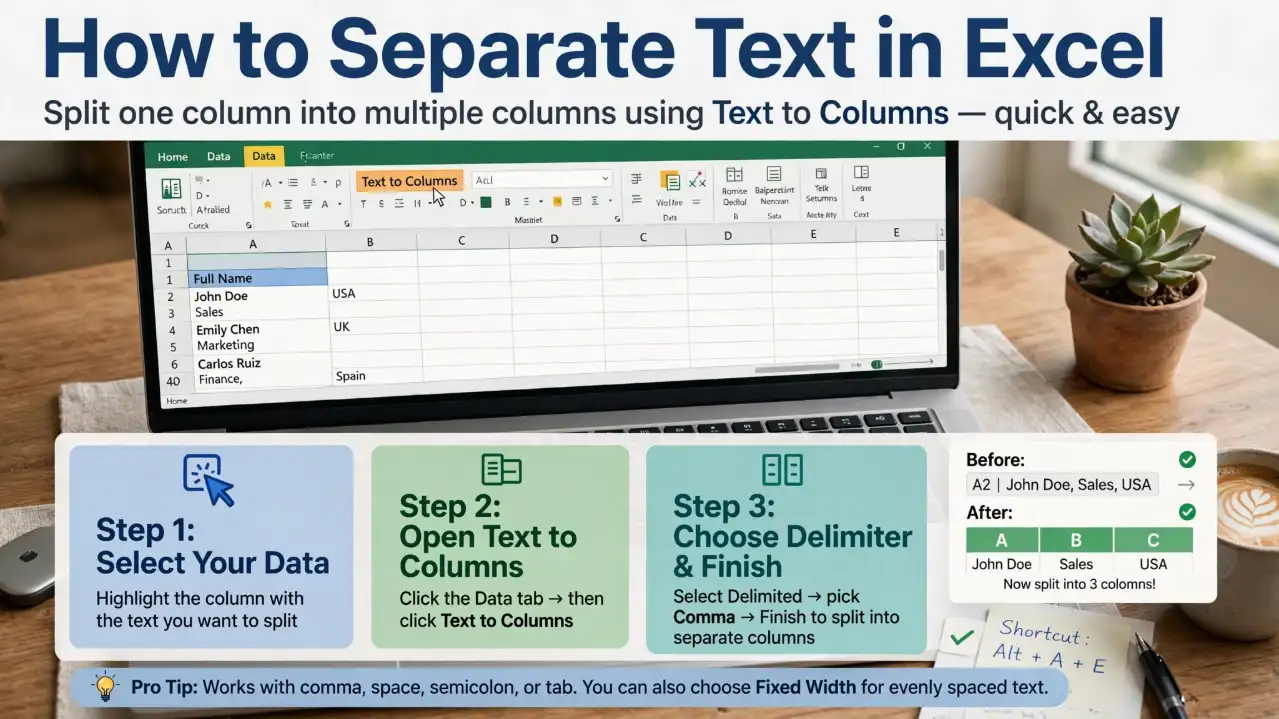
Step 1: Select Your Data
Select the cell, range, or column containing the combined text.
For example, if your names are in cells A2 through A100, select A2:A100.
Before continuing, check the cells immediately to the right. Text to Columns distributes the results into adjacent cells, so existing information can be overwritten. Microsoft specifically recommends leaving enough empty space for the results.
Step 2: Open Text to Columns
Go to:
Data > Text to Columns
This opens the Text to Columns wizard in supported desktop versions of Excel.
Step 3: Choose a Delimiter
You will normally see two choices:
- Delimited — use this when a character separates the information.
- Fixed Width — use this when the text needs to be divided at specific character positions.
For names such as John Smith, choose Delimited and select Space.
For data such as John,Smith, select Comma.
You can preview the results before completing the operation.
Step 4: Select the Destination and Finish
Choose where you want the separated information to appear.
You can use the original location if the surrounding cells are empty, or select another destination to preserve the original data.
Then select Finish.
Your combined text will now appear in separate columns.
How to Separate Text by Comma, Space, or Another Character
The key to Text to Columns is choosing the correct delimiter. A delimiter is the character that tells Excel where one piece of information ends and another begins.
Split Text by Comma
Suppose A2 contains:
John,Smith,New York
Select the data and choose:
Data > Text to Columns > Delimited > Comma
Excel can separate the result into:
| First | Last | City |
| John | Smith | New York |
This is especially useful for imported CSV-style information.
Split Text by Space
Suppose A2 contains:
John Smith
Choose Space as the delimiter.
Excel will return:
| First | Last |
| John | Smith |
However, be careful with text containing several spaces.
For example:
John Michael Smith
could be divided into three pieces. If you need a specific pattern, Flash Fill or formulas may give you better control.
Split Text Using a Custom Delimiter
You are not limited to commas and spaces.
Suppose your data looks like:
ABC-123-XYZ
You can choose Other in the Text to Columns wizard and enter:
–
Excel will then split the text at each hyphen.
This approach also works with characters such as /, |, :, and ;, depending on how your data is structured.
How to Separate Text in Excel With Flash Fill
Flash Fill is useful when your data does not have a simple delimiter or when you want Excel to recognize a pattern from an example.
Microsoft says Flash Fill can recognize patterns and automatically fill the remaining cells. You can also run it manually with Data > Flash Fill or Ctrl+E.
For example, suppose column A contains:
John Smith
Emily Johnson
Michael Brown
In B2, type:
John
Then move to B3 and use Ctrl+E.
Excel can recognize the pattern and extract the first names from the remaining records.
Flash Fill is convenient because you do not need to write a formula.
However, the result is not a live formula. If the original data changes later, you may need to run Flash Fill again. For changing data, a formula-based method can be a better choice.
How to Separate Text in Excel With TEXTSPLIT
If you use a newer version of Excel, the TEXTSPLIT function provides a powerful formula-based option.
Microsoft lists TEXTSPLIT for Microsoft 365 and Excel 2024, including Mac versions. It can split text across columns or down rows.
Suppose A2 contains:
John,Smith,Manager
Enter:
=TEXTSPLIT(A2,”,”)
Excel can spill the results across adjacent cells:
| A | B | C |
| John | Smith | Manager |
The major advantage is that the result remains connected to the source cell. If A2 changes, the formula result can update automatically.
Split Text Into Columns
For text separated by spaces:
=TEXTSPLIT(A2,” “)
For comma-separated information:
=TEXTSPLIT(A2,”,”)
Split Text Into Rows
TEXTSPLIT can also use a row delimiter.
For example, if a cell contains several items separated by a line break, you can use the appropriate row delimiter to return those items vertically.
Microsoft’s syntax supports both column and row delimiters, along with options for ignoring empty values and handling multiple delimiters.
Split Using Multiple Delimiters
If your data uses more than one separator, TEXTSPLIT can accept multiple delimiters.
For example:
=TEXTSPLIT(A2,{“,”,”;”})
This can be useful when some records use commas while others use semicolons.
How to Separate First and Last Names
Separating names is one of the most common Excel tasks.
For simple names such as:
Sarah Miller
you can use Text to Columns with Space as the delimiter.
If you have Microsoft 365 or Excel 2024, you can also use:
=TEXTBEFORE(A2,” “)
to return the text before the first space.
You can use:
=TEXTAFTER(A2,” “)
to return the text after the first space.
Microsoft also documents older approaches using functions such as LEFT, RIGHT, SEARCH, and LEN for separating name components.
Be careful with names that contain middle names, suffixes, or hyphenated surnames. A simple space delimiter may not produce the structure you want.
How to Separate Email Addresses
Email addresses are another easy example because the @ symbol provides a clear delimiter.
Suppose A2 contains:
john@example.com
To split it into a username and domain with TEXTSPLIT, use:
=TEXTSPLIT(A2,”@”)
You can also use:
=TEXTBEFORE(A2,”@”)
to return:
john
And:
=TEXTAFTER(A2,”@”)
to return:
example.com
This can be useful when cleaning contact lists or analyzing email domains.
How to Separate Text and Numbers
Sometimes a cell contains both letters and numbers, such as:
ABC12345
or:
Product789
This is different from simply splitting at a comma or space because there may be no delimiter.
For these situations, Flash Fill can be convenient if the pattern is consistent. You can type the desired text or number portion in an adjacent cell and let Excel detect the pattern. Microsoft specifically supports Flash Fill for pattern-based data transformations.
For more complex or inconsistent data, formulas or Power Query may provide better control.
Text to Columns vs. Flash Fill vs. TEXTSPLIT
Choosing the right method can save time.
| Method | Best for | Updates automatically? |
| Text to Columns | One-time splits using delimiters | No |
| Flash Fill | Pattern-based transformations | No |
| TEXTSPLIT | Formula-based splitting | Yes |
| LEFT/RIGHT/MID | Older Excel versions and custom extraction | Yes |
If your data is simple and separated by commas, spaces, or tabs, Text to Columns is usually the easiest choice.
If the data follows a recognizable pattern but does not have a clean delimiter, try Flash Fill.
If you want the results to respond when the original data changes, use TEXTSPLIT or another suitable formula.
Common Problems When Separating Text in Excel
Text to Columns overwrites existing data
This is one of the most important things to watch for.
Excel distributes the split results into cells to the right of the source. If those cells already contain information, the results can overwrite it. Microsoft specifically warns users to leave enough blank columns before splitting.
The wrong delimiter is selected
If your data uses commas but you select Space, Excel may produce unexpected columns.
Always check the preview before selecting Finish.
A name splits into too many columns
A space delimiter treats every space as a possible break.
For example:
Mary Jane Watson
may become three columns.
For irregular names, use Flash Fill or a formula that identifies the specific part you need.
Leading zeros disappear
Codes such as:
001245
may be interpreted as numbers.
If leading zeros are important, pay attention to the column data format during the Text to Columns process and use Text where appropriate. Microsoft’s Text to Columns guidance includes choosing the data format for the resulting columns.
TEXTSPLIT returns a spill error
Formula-based results need enough empty cells for the output.
If cells where the results need to appear are occupied, Excel may not be able to spill the results.
Frequently Asked Questions
How do I split a column in Excel?
Select the column, go to Data > Text to Columns, choose Delimited or Fixed Width, configure the delimiter or break points, select a safe destination, and click Finish.
How do I split a cell into two columns?
Use Text to Columns and choose the character separating the two pieces. For example, select Space for John Smith or Comma for John,Smith.
How do I split text by comma in Excel?
Select the data, choose Data > Text to Columns, select Delimited, check Comma, review the preview, choose the destination, and select Finish.
Can I separate text with a formula?
Yes. Newer Excel versions support TEXTSPLIT, while functions such as TEXTBEFORE, TEXTAFTER, LEFT, RIGHT, MID, SEARCH, and LEN can handle different text-separation tasks.
How do I separate first and last names?
For simple two-part names, use Text to Columns with Space as the delimiter. For more complicated names, Flash Fill or formulas can provide more control.
How do I split text without overwriting other columns?
Insert blank columns next to your source data or select a different destination in the Text to Columns wizard. Always check the destination before completing the operation.
Conclusion
Learning how to separate text in Excel is much easier once you know which tool matches your data.
For a quick, one-time split, Text to Columns is usually the simplest option. For pattern-based cleanup, Flash Fill can save time. If you use a newer version of Excel and want a formula that updates with the source data, TEXTSPLIT is a powerful choice.
Before splitting anything, check your data structure, leave enough space for the results, and preview the output. With the right method, you can quickly turn combined names, addresses, email addresses, codes, and imported data into clean, usable spreadsheet columns.

I am Jaxon Blake, the author of DreamZoons.com, where I explore the hidden meanings behind dreams. I am a dream expert, and I help people understand what their dreams may be trying to tell them.